
Pinterest works differently from other social networks. People don’t go there to see what their friends are doing. They go to search for ideas and plans: dinner recipes, a wedding theme, a budget template, a side hustle to start. When one of your Pins matches that search, it can keep sending visitors to your website for months.
That makes Pinterest one of the best free traffic sources for bloggers, Etsy sellers and small businesses. But it only works if your account is set up properly from the start: a business account, a claimed website, Rich Pins, and boards built around what people actually search.
This guide walks you through each step, using Pinterest’s own help pages, so your first Pins start working for you instead of disappearing.
Who this is for: bloggers, Etsy sellers and small business owners who want traffic from Pinterest and are starting from zero. If you sell digital products, our guide on how to start an Etsy digital download shop with AI pairs well with this one.
Why Pinterest is worth your time in 2026
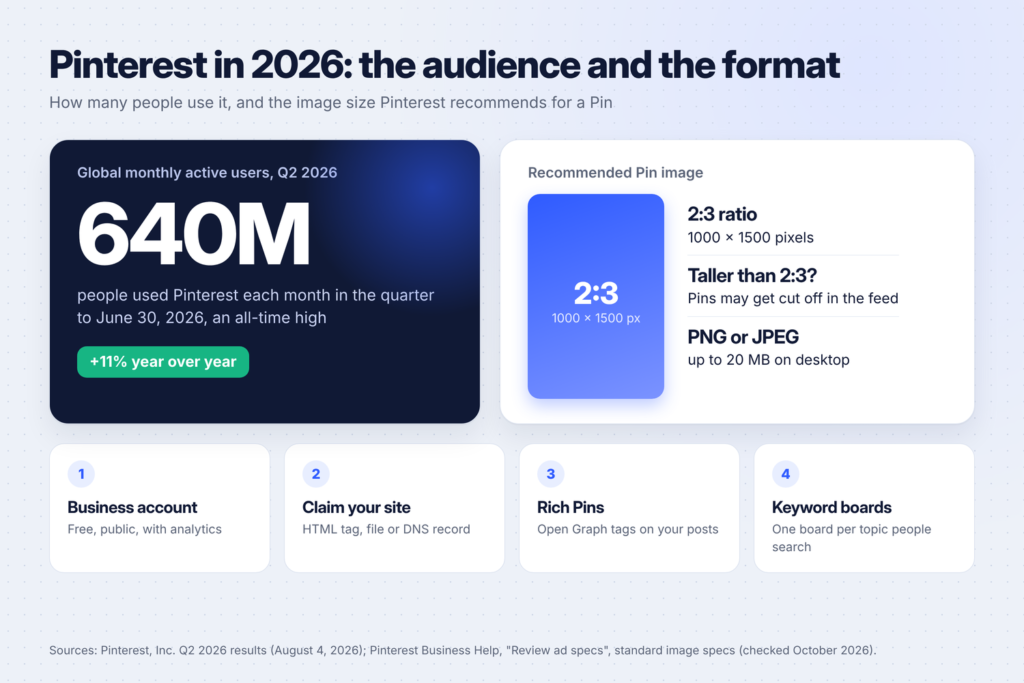
Pinterest is big and still growing. In its second-quarter 2026 results, Pinterest reported an all-time high of 640 million global monthly active users, up 11% from a year earlier.
More important than the size is how people use it. On most social apps, a post is seen for a day or two. On Pinterest, people search, save ideas to boards and come back to them later, so a good Pin can keep getting found long after you post it.
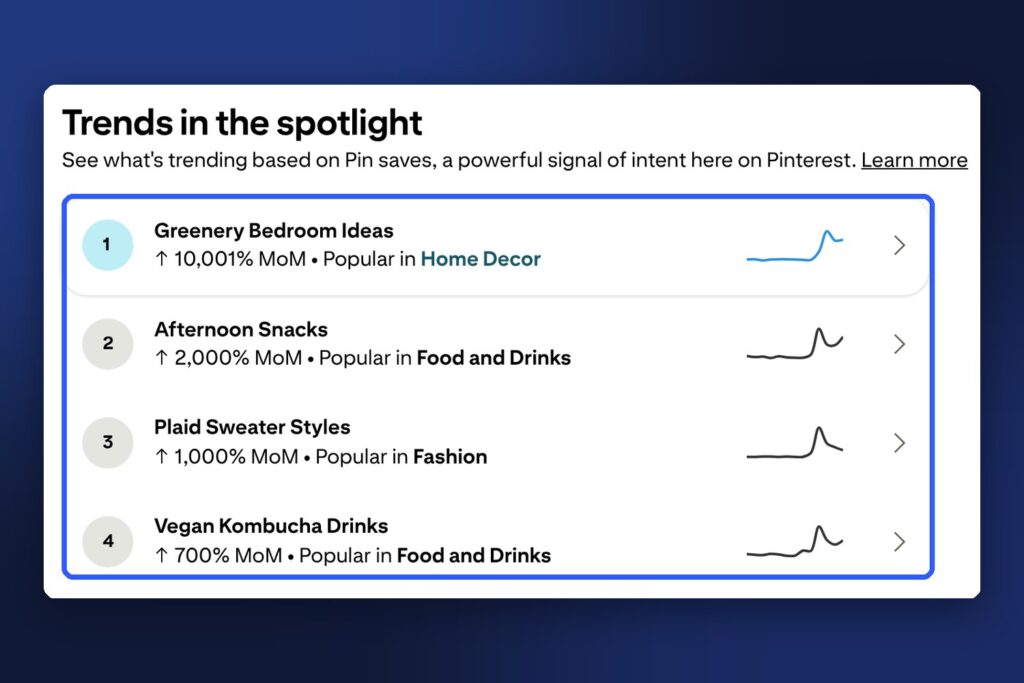
Pinterest also shows you what people are looking for. Its free Pinterest Trends tool lists rising topics based on Pin saves, which you can use to plan content before demand peaks.
Step 1: Create a business account (or convert your personal one)
A business account is free. Pinterest’s help page on getting a business account says it gives you access to analytics on your Pins and the ability to run ads, along with the Pinterest Business Hub.
You have two options:
- Create a new business account. Go to Pinterest, sign up and choose a business account. You’ll fill in your profile, describe your business and say whether you plan to run ads.
- Convert your personal account. In Settings, open Account management, find Convert to a business account and click Convert account. Pinterest says your Pins and followers stay the same, and business accounts are always public.
Which should you pick? If your personal account is full of unrelated boards (recipes, holiday ideas, home decor) and your business is about something else, start fresh. A focused account is easier for Pinterest to understand and for visitors to follow.
Step 2: Set up a profile that says what you do
Your profile is where people decide whether to follow you. Keep it simple and searchable:
- Display name: your brand plus a few words about what you share, for example “Buildfloow | AI Side Hustles & Digital Products.” People search for topics, not brand names, so the keywords help.
- Profile photo: your logo or a clear photo of you. Make sure it’s readable at a small size.
- About section: one or two sentences about who you help and with what. Write it for a person, not a search engine.
- Website: add your site’s address. You’ll claim it in the next step.
Step 3: Claim your website
Claiming your website proves to Pinterest that you own it. Pinterest says that whenever someone saves an image from your claimed website, your profile picture appears alongside the Pin, the Pin links to your Pinterest profile, and people see the option to follow you. Every save from your site becomes a small advert for your account.
Pinterest’s help article on claiming your website lists three ways to do it:
| Method | What you do | Best for |
|---|---|---|
| HTML tag | Paste a short tag from Pinterest into the head section of your site | WordPress and most website builders |
| HTML file | Upload a file from Pinterest to your website’s root folder | Sites where you can upload files to the server |
| DNS TXT record | Add a text record to your domain’s DNS settings | Anyone who manages their own domain |
The steps: open Settings, click Link to Pinterest, click Claim next to Websites, choose a method, add the code to your site, then click Verify.
WordPress tip: SEO plugins such as Rank Math have a field for Pinterest’s verification code in their settings, so you can paste the code there instead of editing your theme. Pinterest says that once your site is claimed, you can remove the tag.
Step 4: Turn on Rich Pins
Rich Pins pull extra information from your website into the Pin, such as an article’s title and description, so your Pins look more complete and stay in sync with your site.
Pinterest’s help article on rich Pins explains that article Rich Pins use Open Graph or Schema.org tags in your page’s head section: og:title, og:description, og:type set to “article” and og:site_name. Most WordPress SEO plugins add these Open Graph tags for you automatically.
One detail worth knowing: Pinterest says it doesn’t consider listicles, or pages with mostly images and little text, to be articles. Detailed posts with real written content are the best fit for article Rich Pins.

Step 5: Plan your boards around search
Boards organize your Pins and tell Pinterest what your account is about. Treat each board like a category on your website.
- Start with 5 to 10 boards about your main topics. A blog about money and AI might have “AI Side Hustles,” “Etsy and Printables,” “Canva Templates” and “Blogging Tips.”
- Name boards with the words people search. “Etsy Printables to Sell” is better than “My Favorite Things.”
- Write a board description of one or two sentences that explains what’s on the board, using natural keywords.
- Keep boards focused. A board with 30 Pins about one topic is more useful than a board with 300 Pins about everything.
- Add a few good Pins to each board before you promote your account, so new visitors don’t land on empty boards.
Step 6: Find keywords with Pinterest search and Trends
Pinterest is a visual search engine, so keywords matter. Two free ways to find them:
- Pinterest search: type a topic into the search bar and note the suggestions that appear. Those come from what people type.
- Pinterest Trends: check Pinterest Trends to see topics that are rising, and when interest in seasonal topics usually starts.
Use the exact phrases you find in your board names, Pin titles and Pin descriptions. Don’t stuff them in. Write one natural sentence that a person would want to read.
Seasonal topics need planning. For example, Christmas ideas get saved well before December, so seasonal Pins should go up weeks ahead. Our list of Christmas printables to make and sell shows how that timing works for one season.
Step 7: Make your first Pins

Pinterest’s ad specs page recommends a 2:3 aspect ratio, or 1000 × 1500 pixels, for standard Pins. It warns that Pins taller than 2:3 might get cut off in people’s feeds. Images can be PNG or JPEG.
A Pin that gets clicked usually has:
- A clear headline on the image in large, easy-to-read text. One idea per Pin.
- An image that fits the topic, with enough contrast for the text to stand out.
- A title and description that use your keywords naturally and tell people what they’ll get when they click.
- Alt text that describes the image for people using screen readers.
- A link to the exact page, not your homepage.
You can design Pins in Canva using templates as a starting point. If you’re new to Canva, see 15 side hustles you can do with Canva for what it can do.
About AI images: Pinterest’s help page on Gen AI labels says it adds an “AI modified” label to Pins when it detects AI was used to generate or modify them, either from image metadata or using its own classifiers. If you’d rather your Pins don’t carry that label, design them with real photos and your own graphics.
Write titles and descriptions that earn the click
The words on and around your Pin do two jobs: help Pinterest show it to the right searches, and make people want to click. Here’s an example for a blog post about printable ideas:
- Image headline: “50 Printables People Actually Buy”
- Pin title: “50 Printable Ideas That Sell on Etsy (Beginner Friendly)”
- Description: “Not sure what to make for your Etsy shop? These 50 printable ideas cover planners, kids’ activities, party games, wedding templates and wall art, plus how to check demand before you design anything.”
- Alt text: “Pinterest Pin with the text 50 Printables People Actually Buy over a woman filling in a printed meal planner.”
Notice that the headline makes a promise but doesn’t list the 50 ideas. The reader has to click to get them.
You can draft these with AI, then edit them so they sound like you. A prompt to start with:
Write Pinterest Pin text for this blog post: [title and link].
The post is for: [who it helps].
Give me 3 options, each with:
1. A headline for the image (under 8 words, sparks curiosity, doesn't give the answer away)
2. A Pin title under 100 characters that includes the keyword [keyword]
3. A description of 2-3 sentences in plain English
4. Alt text describing the image
Don't promise results the post doesn't deliver.
Pick the best option, then check that the Pin matches what the page really delivers. A Pin that overpromises gets clicks once and loses trust after.
Step 8: Build a posting routine you can keep

Consistency matters more than volume. A small number of fresh Pins every day or every week is easier to keep up than a burst of 50 Pins followed by a month of silence.
A simple routine for a blog:
- Make two or three Pins for each new blog post, each with a different headline and image.
- Pin them over several days or weeks, not all at once.
- Use Pinterest’s scheduler. Pinterest’s help article on scheduling Pins says business accounts can schedule a Pin up to 30 days in advance, with up to 10 Pins scheduled at a time.
- Check your analytics once a month. Look at which Pins get saves and outbound clicks, and make more like them.
Mistakes to avoid
- Linking to your homepage instead of the exact article or product.
- Using vague board names that nobody searches for.
- Changing topic constantly. A focused account is easier to recommend.
- Giving the whole answer on the Pin. If the image says everything, nobody needs to click. Spark curiosity, then deliver on the page.
- Using other people’s images. Use your own photos, licensed stock photos or your own designs.
FAQ
Is a Pinterest business account free?
Yes. Pinterest says the business account is free and gives you access to analytics and the option to run ads. You only pay if you choose to advertise.
Can I convert my personal account to a business account?
Yes. In Settings, go to Account management and choose Convert to a business account. Pinterest says your Pins and followers stay the same. Business accounts are public.
How long does Pinterest take to bring traffic?
It varies by niche and how consistently you post. Pinterest is slower to start than some platforms, but Pins can keep getting found long after you publish them, so the traffic builds over time.
How many Pins should I post?
Pick a number you can keep up every week. A few fresh Pins a day is a common routine for bloggers, but consistency is more important than any specific number.
Do I need Rich Pins?
They’re not required, but they help your Pins show your article’s title and description and stay up to date with your site. Most WordPress SEO plugins already add the tags Pinterest needs.
Keep going
Once your account is set up, you’ll need things to Pin. For product ideas, see 50 printable ideas that sell on Etsy and 25 Canva templates you can sell. For content ideas beyond Pinterest, read 50 faceless YouTube video ideas by niche.