
You don’t need a designer or a big budget to make a logo for a new business, Etsy shop or YouTube channel. With free AI tools and Canva’s free plan you can go from a blank page to a clean, usable logo in an afternoon.
There’s one catch most “free logo” guides skip: some free logos can never be truly yours. A logo made from a template, or generated by AI from a prompt, may be impossible to trademark or copyright. This guide shows you how to make a logo with AI for free, step by step, and how to make it in a way you can own and protect later.
Who this is for: anyone starting a small business, shop or channel who needs a logo now and doesn’t want to pay for one yet. If you’re starting with Canva, our list of side hustles you can do with Canva shows what else it can do.
First, decide what kind of logo you need
Before you open any tool, know which of these you’re making. It changes how you should build it.
| Your situation | What you need | Best free route |
|---|---|---|
| Testing an idea, small side project | Something clean you can use today | A Canva template, edited |
| A real business you plan to grow | A logo you can own and register later | AI for ideas, then build it yourself in Canva from fonts and simple shapes |
| You can draw or design | Full control | Sketch it, refine it, upload your own artwork |
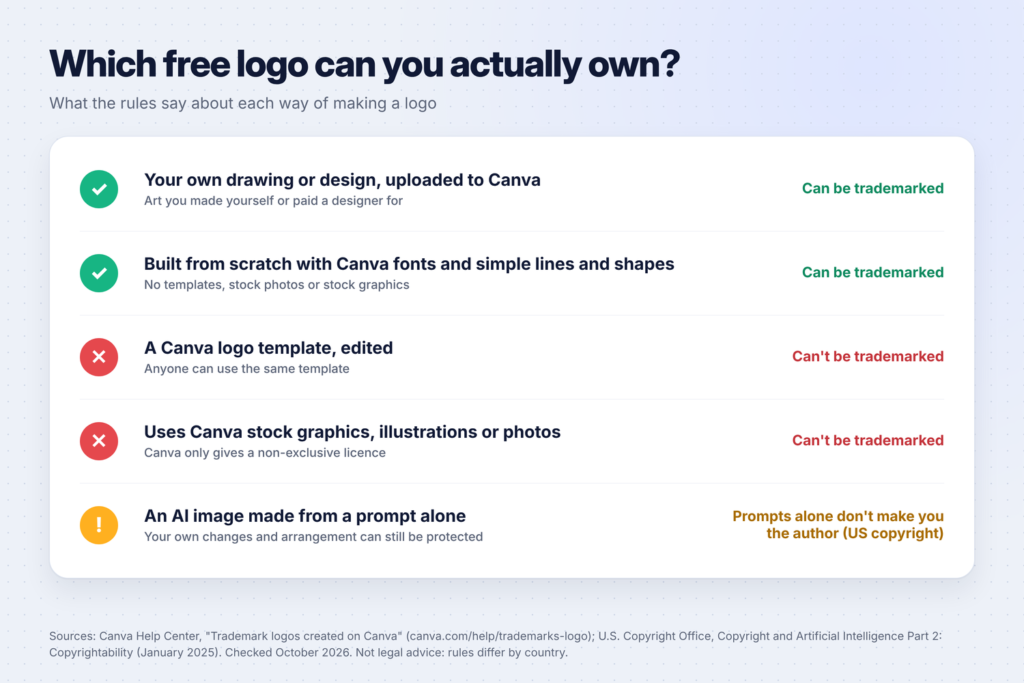
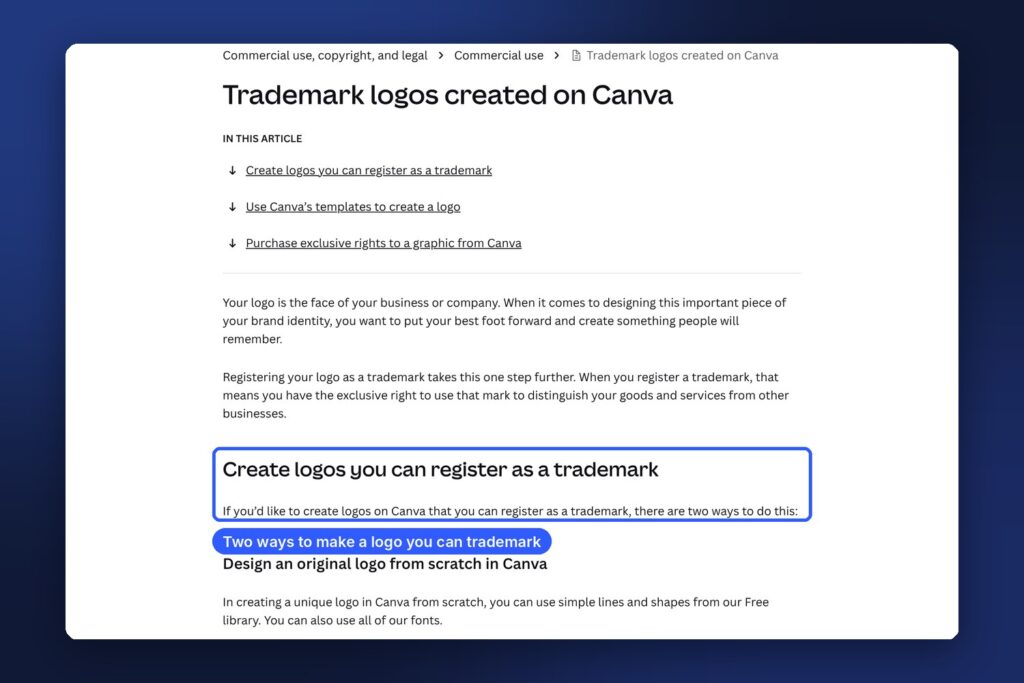
The difference comes down to ownership. According to Canva’s help article on trademarking logos, its logo templates “can be used by anyone”, so your rights to a template logo are non-exclusive and you can’t register it as a trademark. The same goes for logos that use Canva’s stock photos and graphics. A logo you build from scratch using Canva’s fonts and simple lines and shapes, or your own uploaded artwork, can be trademarked.
AI images have a similar issue. In its January 2025 report on copyright and AI, the U.S. Copyright Office concluded that AI output can be protected only where a human has determined enough of the expressive elements, and that, with current technology, prompts alone don’t meet that bar. Your own creative changes and arrangement can still be protected.
So the smart way to use AI for a logo is as a brainstorming partner, not the final designer. Use it for ideas, then build the final version yourself.
Step 1: Write a short brand brief
A logo is easier to design when you know what it needs to say. Spend ten minutes on a brief. You can ask ChatGPT, Claude or Gemini (all have free plans) to help you write it. Copy this prompt and fill in the brackets:
I'm starting a [type of business] called [name]. My customers are [who they are].
I want the brand to feel [three words, e.g. warm, simple, trustworthy].
Ask me 5 questions to understand my business, then write a short brand brief with:
- 3 personality words
- 2-3 colour palette ideas with hex codes and why they fit
- 2 font pairing ideas (one for the name, one for a tagline)
- 5 simple logo concepts I could build from basic shapes and text
Answer its questions honestly. The result is a one-page brief you’ll use for every step after this.
Step 2: Generate ideas with AI (don’t use them as the final logo)
Now get visual ideas. Free AI chat tools can create images, and Canva has its own AI tools too: its logo maker page points to an AI Logo Generator, and Canva’s Magic Media can create graphics from a description.
Try prompts like these:
- “Create 6 simple flat logo concepts for [name], a [business type]. Use only basic shapes and text, no gradients, on a white background.”
- “Show a minimalist logo mark for [name] using the letter [first letter] combined with a [simple object related to your business].”
- “Create a wordmark logo for [name] in a [style, e.g. rounded and friendly] font with a small [icon] above it.”
Look at the results the way a designer looks at sketches. Which idea is clearest? Which works in one colour? Pick one or two directions you like, screenshot them for reference, and move on.
Two warnings at this stage:
- AI often gets text wrong. Letters may be misspelled or warped. You’ll set the real text yourself in the next step.
- Check it doesn’t look like a famous logo. AI can produce shapes close to well-known brands. If your idea reminds you of a big company’s logo, change it.
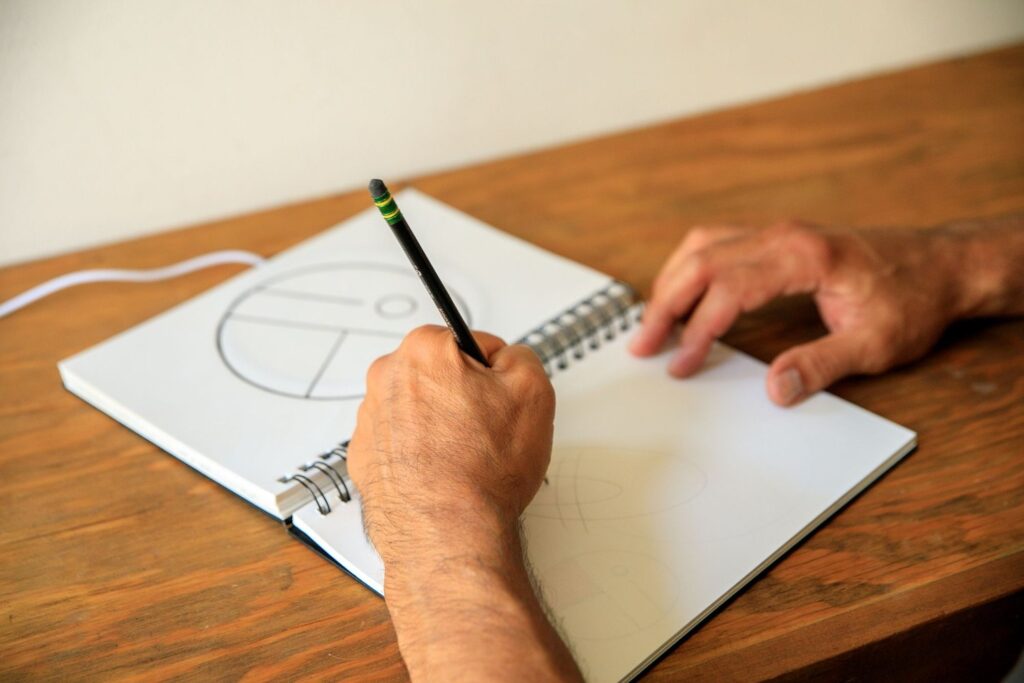
Step 3: Sketch your favourite idea on paper
This step takes five minutes and makes your logo better. Grab a pen and redraw your favourite AI concept from memory, simplified. Try three or four small versions. Small sketches show you quickly whether the idea still works when it’s tiny, like on a phone screen or a favicon.
Good logos are simple. Canva’s own logo guide describes good logos as “simple and recognizable”, “scalable and timeless” and “versatile in online and print formats”. If your sketch needs lots of detail to make sense, simplify it.
Step 4: Build the final logo in Canva (free plan)
Now build your logo properly. Here’s how to do it in a way you can trademark later:
- Sign up or log in to Canva for free and create a new design. A square around 500 x 500 px works well for most logos.
- Start from a blank design, not a template, if you want to own the logo.
- Add your business name with Text. Try the font ideas from your brief. Canva’s help article says you can use all of its fonts in a logo you want to trademark.
- Build your symbol from Elements → Shapes and Lines: circles, squares, lines and simple shapes. Combine and overlap them to recreate your sketch.
- Apply your colours using the hex codes from your brief.
- Make a few versions: the full logo, the symbol on its own, and a one-colour (black or white) version.
- Zoom out until the logo is tiny. If you can’t read it, make the text bigger or simplify the symbol.
Avoid Canva’s stock graphics, illustrations and photos in the final logo if you want to trademark it. Canva’s help article says it only gives users a non-exclusive licence to that content, so it isn’t suitable for a trademark.
If you’re happy using a template for now (for a quick test or a hobby project), that’s fine. Just know you may need a new, original logo if the business grows and you want to register it.
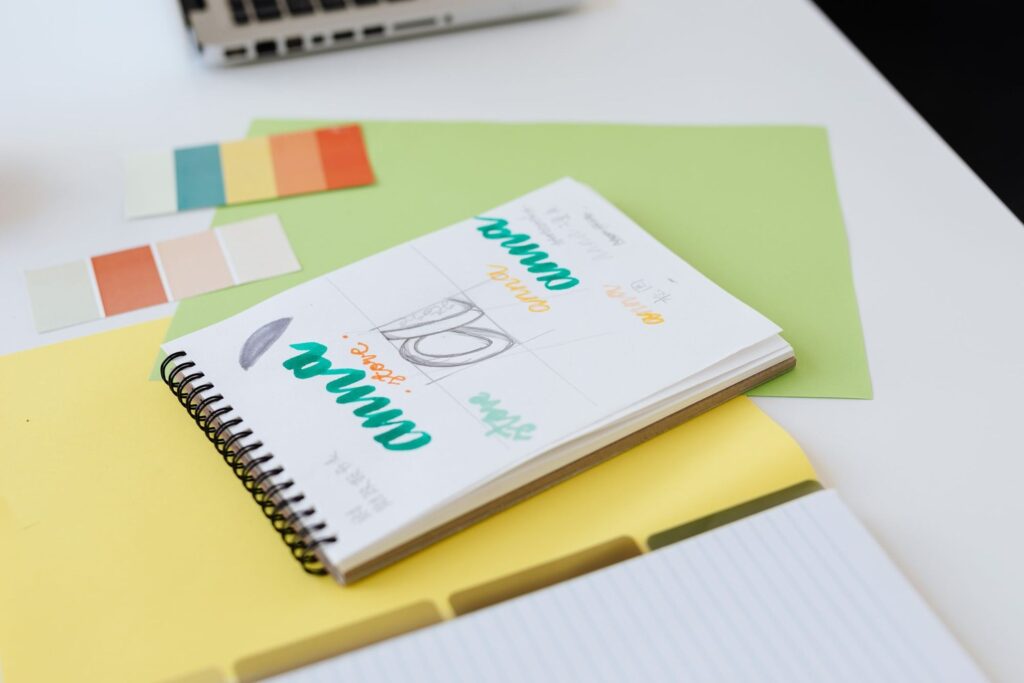
Step 5: Pick colours and fonts that work everywhere
Keep it to two or three colours and one or two fonts. A few practical checks:
- Contrast: your logo should be readable on both white and dark backgrounds. Make a light and a dark version.
- One colour: it should still work in plain black, for stamps, receipts and embroidery.
- Readable fonts: script and very thin fonts look pretty large but disappear when small. Test them at small sizes.
- Meaning: ask your AI tool, “What do these colours suggest to [your customers]?” and check it fits your brief.
Step 6: Download the right files
Your logo needs a few file types:
| File | Use it for | Notes |
|---|---|---|
| PNG | Websites, social media, documents | Canva recommends PNG for most web uses |
| PNG with transparent background | Placing on photos or coloured backgrounds | Canva’s transparent background download is a paid feature |
| JPG | Quick sharing | No transparency |
| Printing (business cards, flyers) | Choose the print-quality PDF option in Canva | |
| SVG | Sign makers, large printing | Canva’s download help lists SVG among the paid-plan options |
The transparent background catch: Canva’s help article on downloading with a transparent background says it’s only available on paid plans (Pro, Teams, Business, Education and Nonprofits). On the free plan, you can:
- design your logo on the exact background colour you’ll use it on, or
- use a free trial of Canva Pro to download the transparent versions you need.
Save every version in one folder named “Logo” so you can find them later.
Free AI logo makers vs building it yourself
You’ll see lots of “free” AI logo generators online. Many are free to design with, but charge to download a usable file. Looka is a popular example: its help centre says its logo maker lets you design for free and pay for a logo package to download the files. Check any tool’s pricing page before you spend time designing.
| Option | Cost to start | Can you own it? | Best for |
|---|---|---|---|
| Canva template | Free | No trademark (non-exclusive) | Quick tests, hobbies |
| Canva from scratch (fonts + simple shapes) | Free | Yes, can be trademarked per Canva | Most new businesses |
| AI image from a prompt only | Free on many tools | Copyright is unlikely for the AI part (U.S. Copyright Office) | Ideas and moodboards |
| AI logo maker like Looka | Free to design, paid to download | Check the tool’s terms | People who want a fast, paid shortcut |
| Hire a designer | Paid | Yes, if the contract transfers the rights | Established businesses |

Step 7: Use your logo consistently
A logo works because people see the same thing again and again. Once you’re happy with it:
- Add it to your social media profiles, website, email signature and invoices.
- Use the same colours and fonts on everything else, from Etsy banners to Pinterest pins. Our guide to setting up Pinterest for your business covers the profile setup.
- If you sell products, use it on your listing images and packaging. Our guide to starting an Etsy digital download shop shows where your branding goes.
Should you trademark your logo?
You don’t need to trademark a logo to use it. Many small businesses use an unregistered logo for years. Registering it gives you stronger, exclusive rights to use it for your goods or services.
In the US, the USPTO’s trademark fee page lists a base application fee of $350 per class of goods or services. If your business covers two classes, that’s $700. Registrations also need maintenance filings later, with more fees.
If you plan to register your logo:
- Build it from scratch (Step 4), not from a template or stock graphics.
- Search the USPTO database for similar marks before you file, so you don’t copy someone by accident.
- For anything important, talk to a trademark attorney. Rules differ by country, and this guide isn’t legal advice.
Common mistakes to avoid
- Using an AI image as-is. You may not be able to protect it, and AI text is often misspelled.
- Using a template when you plan to grow. It’s quick now, but you can’t trademark it later.
- Too much detail. If it doesn’t work at the size of a phone app icon, simplify it.
- Only one version. You’ll need full, icon-only and one-colour versions.
- Copying big brands. Even by accident, a logo that looks like a famous one can cause legal trouble.
FAQ
Can I make a logo with AI for free?
Yes. Free AI chat tools and Canva’s free plan let you brainstorm, design and download a logo without paying. Some features, like a transparent background download in Canva, need a paid plan.
Can I trademark a logo made in Canva?
According to Canva, yes, if you design it from scratch using Canva’s fonts and simple lines and shapes, or upload your own artwork. You can’t trademark a logo made from a Canva template or one that uses Canva’s stock graphics or photos.
Can I copyright an AI-generated logo?
In the US, probably not if it came from a prompt alone. The U.S. Copyright Office says prompts alone don’t make you the author with current technology, but human-made changes and arrangements can be protected. That’s why this guide uses AI for ideas and has you build the final logo yourself.
What size should my logo be?
Design it in a square around 500 x 500 px for most uses, and download larger versions for print. Always test it small, because it will often appear as a tiny profile picture.
Do I need a logo to start a business?
Not on day one. A clean name in a good font is enough to start. Make a proper logo once you know your customers and your brand’s personality.
Keep going
Now that you have a logo, put it to work. See 50 digital product ideas for beginners if you’re still choosing what to sell, 25 Canva templates you can sell if design is your thing, and how to start a WordPress blog to give your new brand a home online.