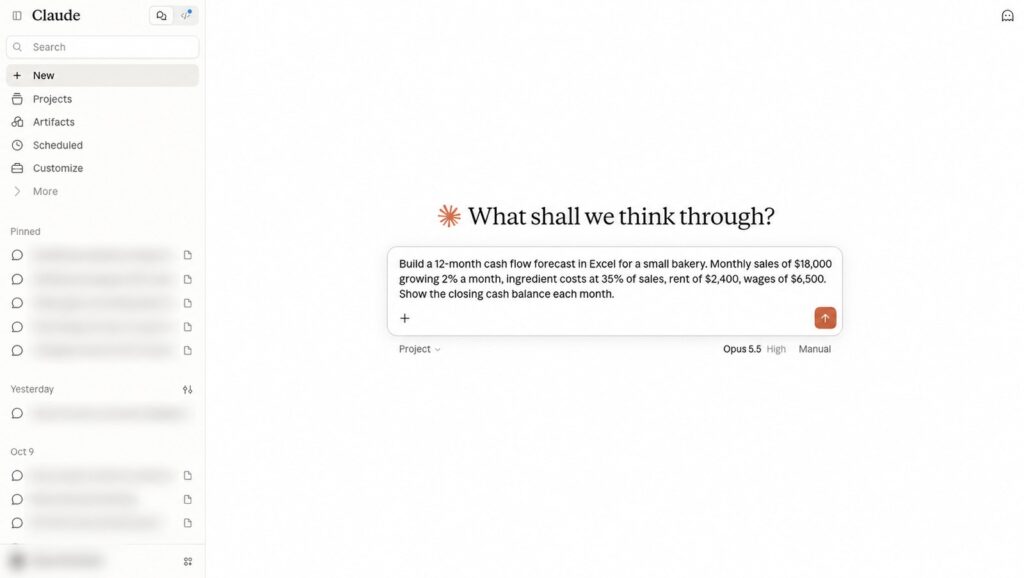

Claude Code can now work with its own WhatsApp number. You connect the number to Kapso, add Kapso’s MCP server to Claude Code with one command, and then you can type things like “Which chats are still unanswered?” in your terminal. Claude reads the conversations and drafts the replies. You approve before anything is sent.
This guide covers the free plan, the three ways to connect a number, the exact setup commands, prompts worth trying first, and the WhatsApp rules that still apply once you go live.
Who this is for: small shops, freelancers and indie builders who get questions on WhatsApp and already use Claude Code. If you don’t have Claude Code yet, our Claude Code and YouTube Shorts setup walks through installing it.
What Kapso is
Kapso is a WhatsApp API platform for developers and a Meta Business Partner. It handles the connection to WhatsApp’s official Cloud API, gives you an inbox, and exposes your numbers and chats through an MCP server. MCP is the standard Claude Code uses to talk to outside tools.
Once it’s connected, Kapso’s own page lists what Claude Code can do: “inspect connected numbers, read conversations, send messages, manage templates, configure webhooks, and help onboard customer-owned WhatsApp accounts.” The MCP server’s tools are named status, whatsapp_numbers, whatsapp_conversations, whatsapp_messages, whatsapp_templates, whatsapp_webhooks, customers, setup_links and search_logs.
What the free plan includes
| Free | Pro | |
|---|---|---|
| Price | $0 a month | $25 a month |
| WhatsApp messages | 2,000 a month | 100,000 a month |
| Connected numbers | 1 | 3, then $10 a month each |
| Also included | Sandbox number, team inbox, $2 in credits | Pre-verified US numbers |
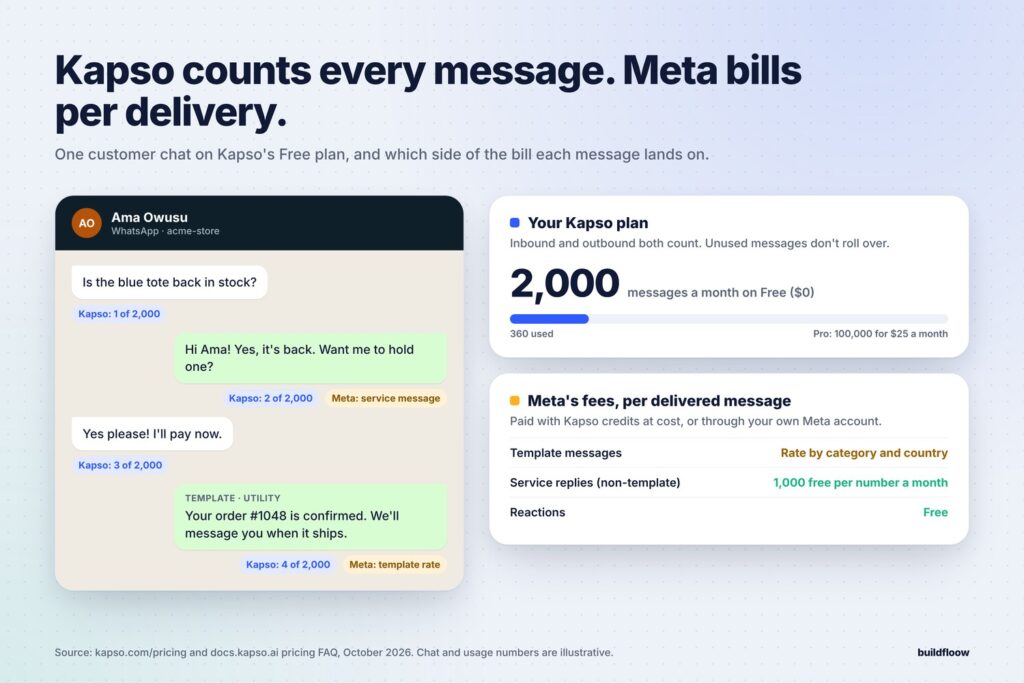
Figures from Kapso’s pricing page, October 2026. Two details matter. Kapso counts inbound and outbound messages toward the 2,000, and unused messages don’t roll over. Meta’s own per-message fees are separate (more on that below).
What you need
| You need | Why | Cost |
|---|---|---|
| Claude Code | Runs the prompts | A paid Claude plan or API credits |
| A Kapso account | Connects WhatsApp and runs the MCP server | Free plan to start |
| A Facebook account | Required for the instant number setup | Free |
| A number to connect (optional) | Only if you want your own number instead of Kapso’s | Depends on the option |
Step 1: Sign up and connect a number
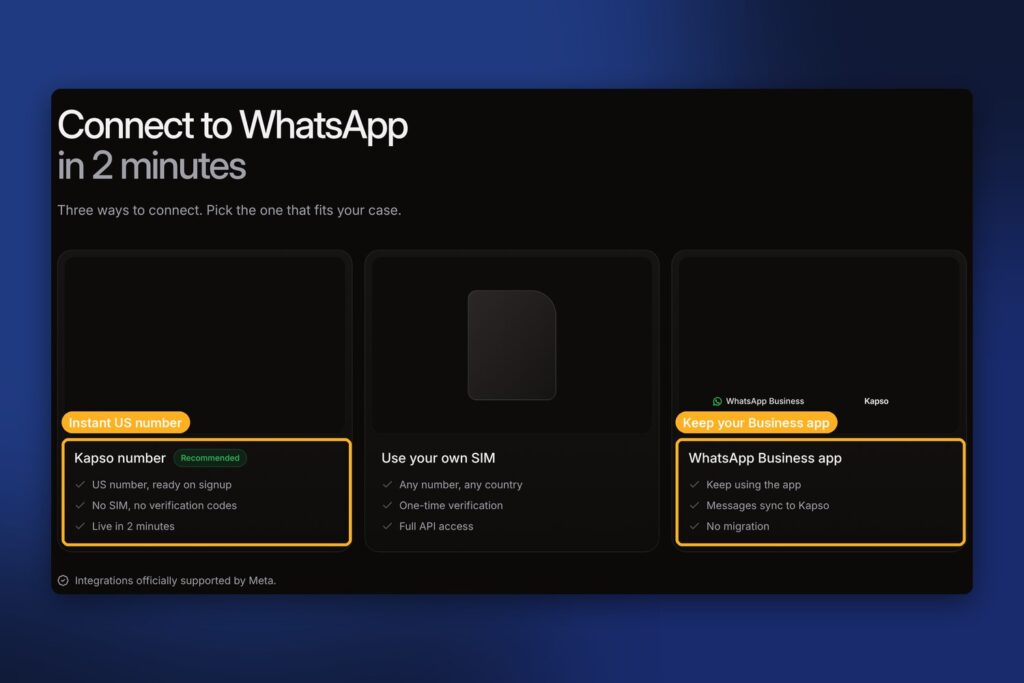
Create a Kapso account, then open the WhatsApp connection screen. Kapso’s connection guide offers three options:
| Option | Best for | What you need |
|---|---|---|
| Instant setup | Getting started right away | A Facebook account. You get a pre-verified US number with no SMS code |
| WhatsApp Business app | Keeping your current business number and app | A number already active in the WhatsApp Business app (not personal WhatsApp) |
| Bring your own SIM | Using a number you control as a dedicated API number | A dedicated SIM that can receive Meta’s 6-digit code |
Instant setup: Kapso’s docs say the pre-verified number “requires a small deposit that goes directly to your project credits” and is available on every plan. During the Meta screens, pick the pre-verified number marked “Verified”. Don’t choose “Use a display name with a virtual number instead” or “Enter a new phone number”.
WhatsApp Business app: you scan a QR code in the app and tap “Connect to the Business Platform”. You’ll be asked whether to bring over your chat history, and Kapso warns: “You cannot change this decision later.” After that, messages show up in both the app and Kapso.
Bring your own SIM: the number moves fully to the API connection, so it can’t stay active in the WhatsApp Business app at the same time.
Just testing? Every plan also includes a shared sandbox number with isolated test sessions, so you can try the Claude Code side before connecting anything real.
Step 2: Create an API key
In the Kapso dashboard, open API keys (some Kapso pages show it under Integrations → API keys) and create a project key. Then put it in your terminal session:
export KAPSO_API_KEY="your_project_api_key"
Treat the key like a password. Don’t paste it into a chat, a public repo or a screenshot.
Step 3: Add Kapso to Claude Code with one command
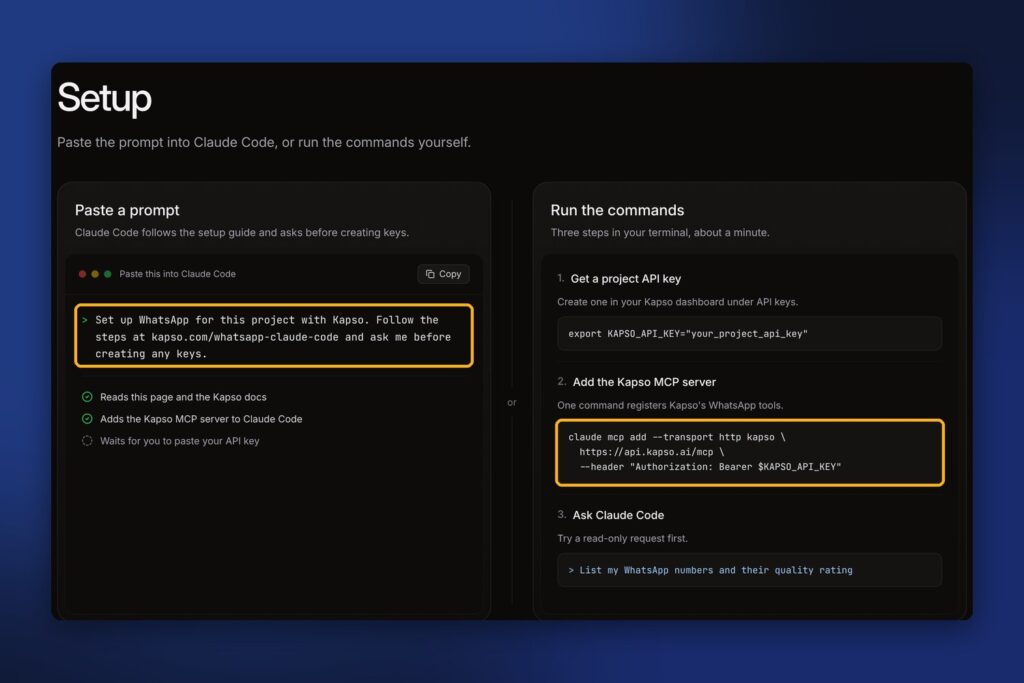
claude mcp add --transport http kapso https://api.kapso.ai/mcp \
  --header "Authorization: Bearer $KAPSO_API_KEY"
Check that it worked:
claude mcp get kapso
The status should say Connected. MCP tools load when a Claude Code session starts, so restart Claude Code (or run claude --continue) before you use them.
Prefer not to type commands? Kapso has a paste-in prompt. Start Claude Code in your project and send:
Set up WhatsApp for this project with Kapso. Follow the steps at kapso.com/whatsapp-claude-code and ask me before creating any keys.
Claude reads Kapso’s setup page, adds the MCP server and waits for you to paste your API key.
Step 4: Start with a read-only question
Kapso suggests starting with something that changes nothing:
List my WhatsApp numbers and their quality rating
Then try the one from the Reel:
Which chats are still unanswered? Summarize each one and draft a reply. Don't send anything yet.
Claude calls the conversation tools, lists the chats waiting on you and writes a draft for each. You read the drafts and tell it which ones to send, or what to change. If you’ve been stretching your Claude limit, keep these prompts specific (a date range, one customer, unread only) so Claude doesn’t pull your whole inbox into the chat.
Step 5: Let it send, with your approval
Claude Code asks for permission before it runs a tool. When it wants to send a message, you see a prompt with the tool name and the details, and you choose yes or no. Kapso’s own instructions for agents add a second rule: “Confirm with the user before sending messages or changing templates, webhooks, or setup links.”
A few things worth asking for once you trust the drafts:
- Send a reply: “Send the draft to Ama, but change ‘hold one’ to ‘hold one until Friday’.”
- Templates: “Draft an order-confirmation template with the customer’s name and order number.” Templates go through Meta’s review before you can use them.
- Webhooks: “Set up a webhook that sends new messages to https://my-app.example.com/whatsapp.” This is how your own app or automation hears about new chats.
- Logs: “Why did the last message to Diego fail?” The
search_logstool helps here.
Claude Code’s permission prompt also has an option to stop asking for a tool. Leave it alone until you’ve watched Claude handle real chats for a while, and never turn it off for sending.
The WhatsApp rules still apply
Kapso uses the official WhatsApp Business Platform, so Meta’s rules come with it:
- Meta charges per delivered message. Template messages are charged by category and country. Kapso’s pricing FAQ says that since October 1, 2026, non-template service messages are billable too, with 1,000 free delivered service messages per number each month. You can pay Meta’s fees with Kapso credits (at cost, no markup) or through your own Meta account.
- Production sending can still be blocked after your number connects. Kapso lists display-name review, business verification, account review, payment eligibility, template review and country restrictions.
- Have your business details ready: legal name, address, business phone number and a public HTTPS website in Meta.
None of this stops you from testing on the sandbox today. It’s the work to plan for before customers start messaging your number.
Bonus: text Claude Code from your phone
Kapso also publishes an open-source project, claude-code-whatsapp, that flips the setup around. You message a WhatsApp number, and Claude Code works on your GitHub repos in an isolated E2B sandbox, reading and editing files and running commands.
It takes more setup than the MCP route: an Anthropic API key, an E2B API key, a Kapso key and number, and a GitHub fine-grained token with read and write access to contents and pull requests. You also run a small Node.js server with a public URL (the README uses ngrok or cloudflared for testing) and point a Kapso webhook at it. In WhatsApp you then get commands like /status, /compact and /clear.
FAQ
Is Kapso free?
The Free plan is $0 a month with 2,000 messages, one connected number and a sandbox number. Meta’s per-message fees are separate.
Does Claude reply to customers on its own?
Not with this setup. Claude Code acts when you ask it to in your terminal, and it asks permission before each tool call. Automatic replies need an agent or workflow running on Kapso or your own server.
Can I keep using the WhatsApp Business app?
Yes, if you connect with the WhatsApp Business app option. Messages then appear in both the app and Kapso.
Can I use my personal WhatsApp number?
No. The app option needs a number in the WhatsApp Business app, not personal WhatsApp.
Which country is the instant number from?
The instant setup gives a US number. For other countries, use your own SIM or your Business app number.
Is it affiliated with Anthropic or Meta?
Kapso is an independent company and a Meta Business Partner. It isn’t made by Anthropic.
Plans and Meta pricing change, so check Kapso’s pricing and the connection guide before you plan around a number.
Links
- Kapso for Claude Code: kapso.com/whatsapp-claude-code
- Connect a WhatsApp number: docs.kapso.ai
- Kapso CLI, for scripts:
npm install -g @kapso/cli(CLI docs) - More ways to earn with Claude: 15 side hustles you can do with Claude