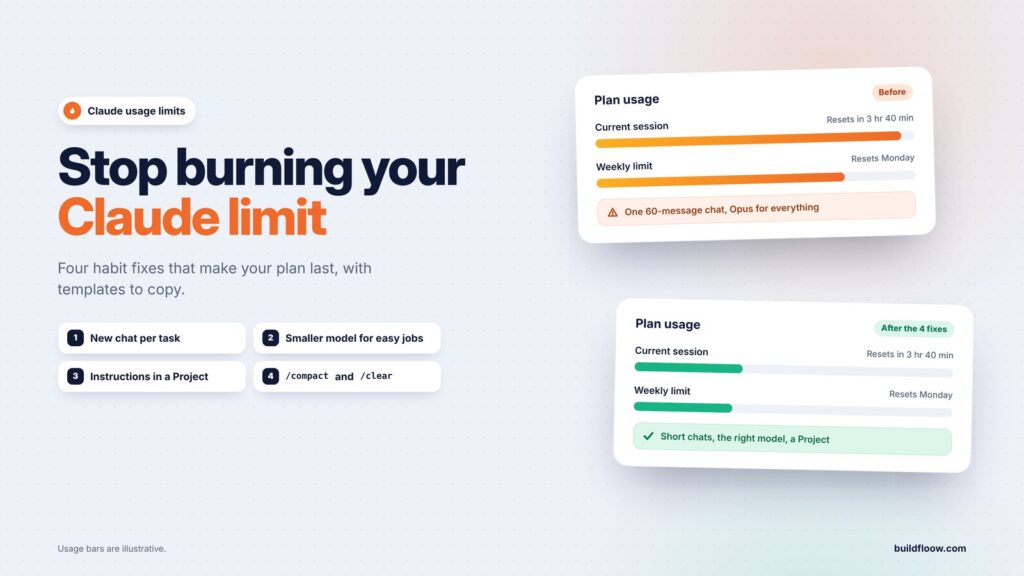
You’re in the middle of something good and Claude tells you you’ve hit your limit. Come back in a few hours.
Most people blame the plan, but usually the habits are the problem. Claude’s limit isn’t a count of messages. It’s based on how much text Claude has to read and write for you, and a few common habits make every message far more expensive than it needs to be.
This guide explains what actually uses up your limit, then gives you four fixes you can start today, with templates to copy. If you use Claude to earn, through client work or one of these side hustles you can do with Claude, a limit that lasts all week is worth real money.
First: what actually uses your limit
Claude re-reads the whole conversation every time you send a message. Message 1 is cheap. Message 40 in the same chat makes Claude read messages 1 to 39 again, plus every file you uploaded, plus its own long answers. The longer a chat gets, the more each new message costs, even a short “thanks, now do the next one”.
Three more things to know:
- Your usage is shared. Claude on the web, the desktop and mobile apps, and Claude Code all draw from the same allowance. Claude’s help center says all activity in both tools counts against the same limits, so a long coding session in Claude Code eats into the allowance you use for chats.
- There are two different limits. The usage limit is how much you can use Claude over a period of time. Paid plans have a five-hour session window that starts with your first message, plus a weekly limit. The length limit is how much fits in one chat (the context window). Hitting the second means a chat is too long; hitting the first means you’ve used your allowance for now.
- Check where you stand. On the web, go to Settings → Usage to see how much of your current session and week you’ve used, and when each resets. In Claude Code, type
/status. Look before you start a big job.
Every fix below comes back to one idea: send Claude less text it doesn’t need.
Fix 1: Start a new chat for every new task
This is the biggest one. One chat for “everything about my channel” grows forever: ideas, then a script, then a thumbnail, then your newsletter. By then every message drags along thousands of words that have nothing to do with the question.
The rule: one task, one chat. When the topic changes, start fresh.
But I’ll lose the context. Not if you carry over a summary. Before you leave a long chat, ask:
Summarize this conversation for a fresh chat: the goal, the decisions we made,
the current version of the work, and the open questions. Keep it under 200 words.
Paste that summary as the first message of the new chat. You keep what matters and drop the 30 messages of back-and-forth. This works for any workflow that runs across several sessions, such as the daily routine in our Claude and YouTube Shorts setup, where each Short gets its own short chat.
Signs a chat is too long:
- Claude starts forgetting or contradicting things from earlier.
- Answers get slower.
- You’re scrolling for a long time to find something.
- You’ve changed topic two or more times.
Fix 2: Use a smaller model for easy jobs
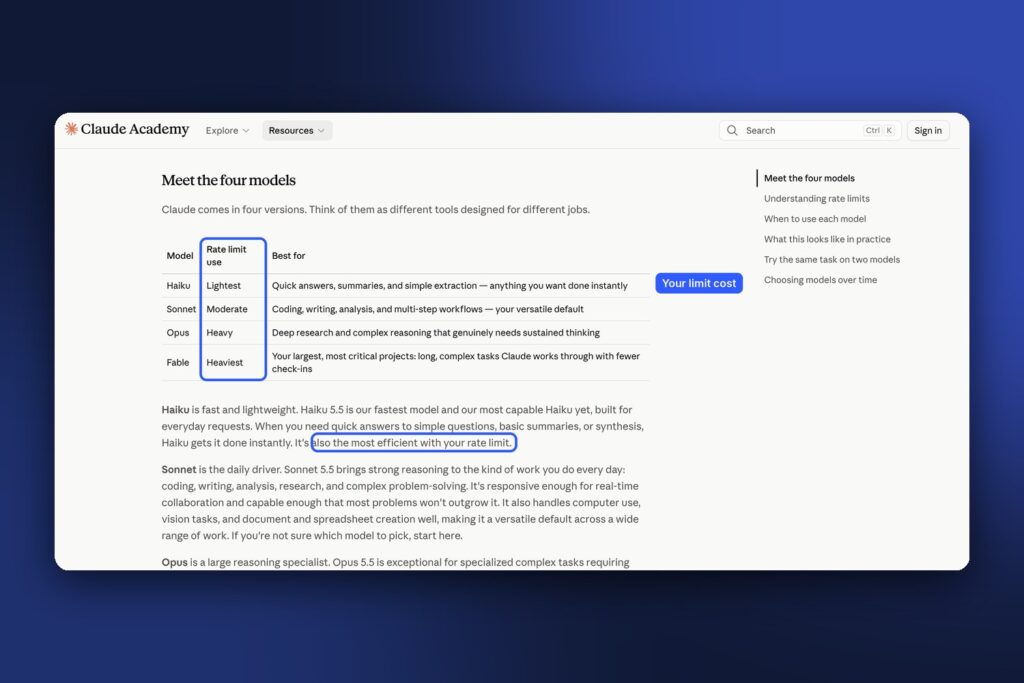
Claude comes in sizes. Bigger models reason more and use more of your limit; smaller ones are fast and light. Using the biggest model for everything is like sending a truck to deliver a letter.
In the Claude app, click the model name in the message box to switch. As of October 2026, the lineup and its best uses, based on Anthropic’s own model guide, are:
| Model | Best for | Effect on your limit |
|---|---|---|
| Fable (largest, paid plans) | Your biggest, most critical projects | Heaviest |
| Opus (Pro and above) | Hard thinking: complex analysis, tricky code, long strategy documents | Heavy |
| Sonnet (middle) | Everyday work: writing, editing, research summaries, most coding | Moderate |
| Haiku (smallest) | Quick jobs: rewording, formatting, short summaries, translations, simple questions | Lightest |
A simple habit: start in a smaller model and switch up only when the answer isn’t good enough. Most rewrites, formatting jobs and short questions never need the big ones. The Effort setting matters too: a lower setting gives quicker answers that use less of your limit, so keep the highest setting for your hardest problems.
In Claude Code, type /model to switch models for the session. If you’re not sure how Claude compares with other assistants for a given job, try the same short prompt in each one first, so you pick the right tool before you spend any limit at all.
Fix 3: Put your instructions in a Project
If you start chats by pasting the same block (“I run a YouTube channel for beginners, write in a friendly tone, keep it under 40 seconds…”) or re-uploading the same brand guide, Projects fix that.
A Project is a workspace with its own instructions and files that apply to every chat inside it.
How to set one up:
- In Claude, open Projects and create a new project (for example, “My YouTube channel”).
- Add project instructions: who you are, your audience, your tone, your rules. Keep them short and specific.
- Add the files you keep re-uploading (brand guide, your best past scripts, product info) to the project’s knowledge.
- Start every related chat inside the project.
Why it helps your limit: you stop re-uploading the same files into every new chat. When a project’s files get large, Claude searches them and pulls in only the relevant parts instead of reading everything every time. Projects also keep each chat short and focused, so Fix 1 happens almost by itself.
Project instructions template:
About me: [who you are and what you make, one line]
Audience: [who it's for]
Tone: [e.g. friendly, plain words, short sentences]
Always: [your non-negotiables, e.g. hook first, under 40 seconds, end with a comment keyword]
Never: [things to avoid, e.g. hype words, made-up numbers]
Format: [how you want answers laid out]
Keep it under about 150 words, because long instructions are re-read in every chat too. Short, reusable prompts work well inside a Project, and the prompts behind our 15 side hustles you can do with Claude are a good set to save there.
Fix 4: In Claude Code, use /compact and /clear
Claude Code sessions grow fast: every file it reads, every command output and every edit stays in the conversation. Two commands keep that under control.
/compact: when a session gets long
Type /compact and Claude Code replaces the long history with a summary. It keeps what matters (the goal, decisions, current state) and drops old file reads and command output, so each message after that costs much less.
You can tell it what to keep:
/compact keep the API design decisions and the list of failing tests
When to use it: at a natural break, when a sub-task is done. Avoid it halfway through a tricky change, where the details still matter. Claude Code shows how much context is left before it compacts automatically, and compacting yourself at a good moment beats an automatic compact at a bad one.
/clear: between tasks
Type /clear to wipe the conversation and start from zero. Use it whenever you switch to an unrelated task: you finished the login bug, and now you’re writing the README.
Make /clear painless with CLAUDE.md. Put the things Claude should always know about your project (how to run tests, your conventions, where things live) in a CLAUDE.md file at the project root. Claude Code reads it at the start of every session, so clearing doesn’t mean re-explaining.
A good rhythm:
- Start a task with a fresh session (or after
/clear). - Work until the task is done.
/compactat checkpoints in long tasks./clearbefore the next unrelated task.
This rhythm matters most on bigger builds, like a simple app you vibe code with Claude over a weekend, where one long session can drain a day’s allowance.
Quick checklist
Pin this somewhere:
- New task → new chat (carry over a 200-word summary if needed).
- Easy job → smaller model. Hard thinking → big model.
- Repeating instructions or files → put them in a Project.
- Long Claude Code session →
/compactat a checkpoint. - New unrelated task in Claude Code →
/clear(with a good CLAUDE.md). - Big job coming → check Settings → Usage first.
More habits that help
- Ask for shorter answers when you don’t need long ones: “Answer in 3 bullet points.”
- Upload only what’s needed. Paste the relevant section, not the whole 80-page PDF.
- Edit your message instead of piling on corrections. If an answer went wrong because of your prompt, edit the original message and resend, instead of adding three more messages explaining what you meant.
- Batch small questions into one message instead of five.
- Plan big jobs for after a reset, when you have your full allowance.
- Move repeat work into automations. If you ask Claude for the same thing every week, set it up once, for example a weekly content calendar built with Claude and MCP.
FAQ
Does a new chat really make a difference?
Yes. The cost of each message grows with everything Claude has to re-read. A fresh chat with a short summary is a fraction of the size of a 40-message thread.
Will a smaller model give worse answers?
For hard problems, yes, which is why you keep the big models for those. For rewording, formatting, summaries and simple questions, the smaller models are usually just as good and much faster.
Do Projects use up my limit too?
Project instructions are part of every chat in the project, so keep them short. The savings come from not re-uploading files and from keeping chats focused.
Is /compact the same as /clear?
No. /compact keeps a summary and continues the same task. /clear starts from nothing, for a new task.
Does Claude Code share my limit with the Claude app?
Yes. Both count toward the same plan allowance.
What else can I do with Claude once my limit lasts longer?
Plenty. Start with these 15 side hustles you can do with Claude.
Limits and features change, so check Claude’s help center for the current details of your plan.